Voice and files
Speak a request or attach the source when typing alone would lose useful context.
In one sentence
Voice and file tools let you give Jarvis the evidence or explanation in the form you already have.
Speak in Chat
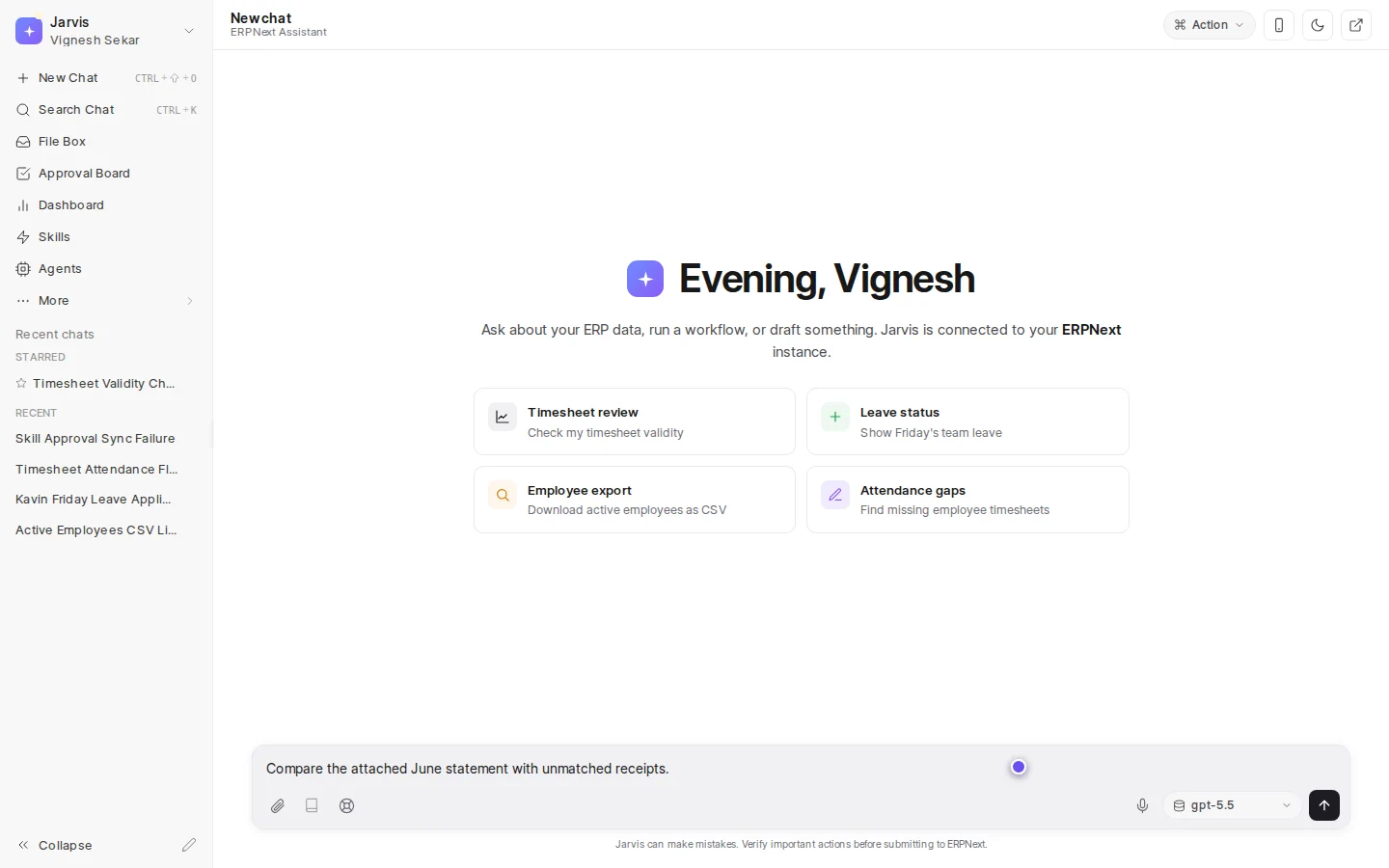
Use the microphone near the message box to dictate a request when voice is available. Read the text before sending, especially for names, amounts, dates, and invoice numbers.
Some workspaces also offer a voice persona. It changes how spoken replies sound across chats and devices. It does not change the facts or permissions Jarvis uses.
Record a Business Note
A short voice note is useful after a meeting or while walking through a process. For example:
The retail team can accept up to a two percent price difference. Anything above that goes to the sales manager.
Jarvis turns the recording into text. Check the text before relying on it as a rule.
Attach a file in Chat
Drag a file into the message box, choose the paperclip, or paste an image. Tell Jarvis what the attachment is and what you need from it. “Check this bill” is weaker than “Compare this supplier bill with the purchase order and list differences.”
Use File Box when the file is entering a repeatable document process. Use a Chat attachment when the file belongs to the conversation in front of you.
Watch for
- A spoken
fifteencan becomefifty. - A screenshot can hide the company or date filter.
- A scan can omit the back page or tax summary.
- A file may contain information that should not be shared with everyone in the chat.
Say the action as well as the source: “Use the attached June statement to find unmatched receipts,” not only “See attached.”
Where to go next
Try Turn a supplier bill into a clean draft or Teach Jarvis a supplier’s real payment terms.