Agents
Install a specialist that checks a defined area and brings back findings or prepared work.
In one sentence
An Agent is a specialist for one area of work, such as bank reconciliation or close review.
Use it when
Use an Agent when the area is clear, the check happens repeatedly, and you want findings waiting for you. Do not install an Agent simply because the work sounds complicated. First decide who will review what it produces.
Find the right one
The Agents area has Featured, Available, Installed, and Activity tabs. Search the catalogue, read what an Agent does, and check what it needs before installing it.
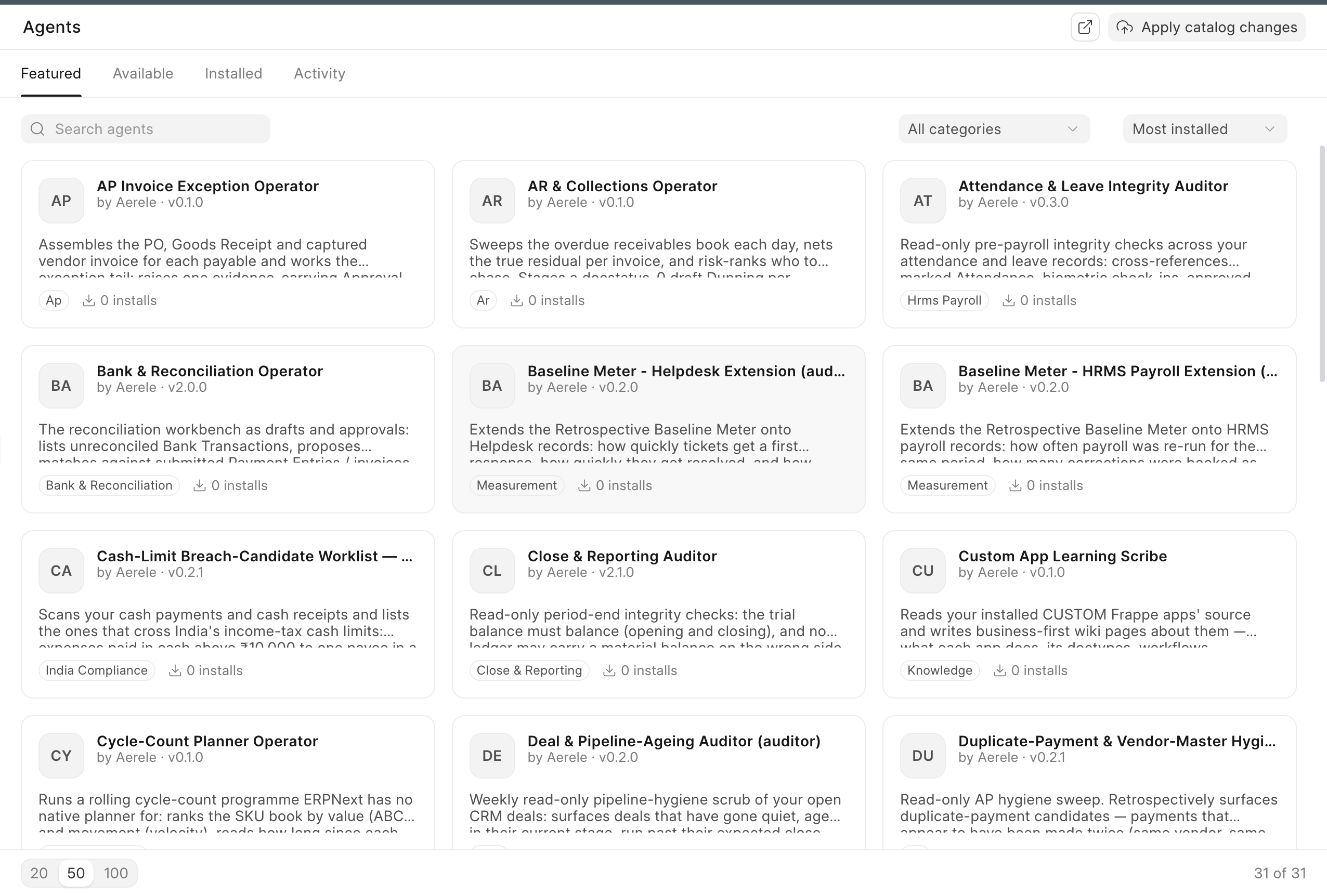
Examples available in the catalogue include Bank & Reconciliation and Close & Reporting. The exact catalogue can change, so the page in your workspace is the current list.
Install and configure
- Open the Agent page and read its overview.
- Check the roles or tools it needs.
- Choose Install.
- Set the schedule and any required choices under Configure. Keep a comment beside a choice when another reviewer needs to understand why it was made.
- Run a read-only check now when that button is offered, or wait for the schedule.
Some Agents only inspect and report. Others prepare proposals or other work. Prepared changes still follow the approval rules.
Review runs and findings
The Runs tab shows the run history and its findings. Findings can be grouped as blockers, warnings, or notes and marked Open, Acknowledged, or Resolved. A repeated finding can show its earlier occurrences. A partial-coverage message means the Agent did not inspect everything expected; do not treat that run as complete.
- Acknowledge when someone has seen the issue but work is still pending.
- Resolve only when the business problem is actually fixed.
- Keep an item open when the evidence is incomplete.
Depending on the Agent, a finding can open the related dashboard, conversation, or business record so you can act without searching for the evidence again.
A real example
The Bank & Reconciliation Agent runs after the daily statement is available. It proposes likely matches with evidence and raises the uncertain lines separately. The finance lead checks and confirms every proposal; the Agent does not reconcile, allocate, or submit a line by itself.
Maintain an installed Agent
Use Update when the catalogue offers a newer approved version. Check its overview and settings again after updating. Use Uninstall only after retaining any run evidence the business needs, because uninstalling removes that Agent’s run history and findings.
An installed Agent is not an invisible employee. Its schedule, run history, findings, and prepared changes remain visible so a person can own the outcome.