AI models
Connect the AI services that power Jarvis and choose what should happen when one is unavailable.
In one sentence
AI models are the connected services Jarvis uses to understand a request and prepare a reply.
Who can manage them
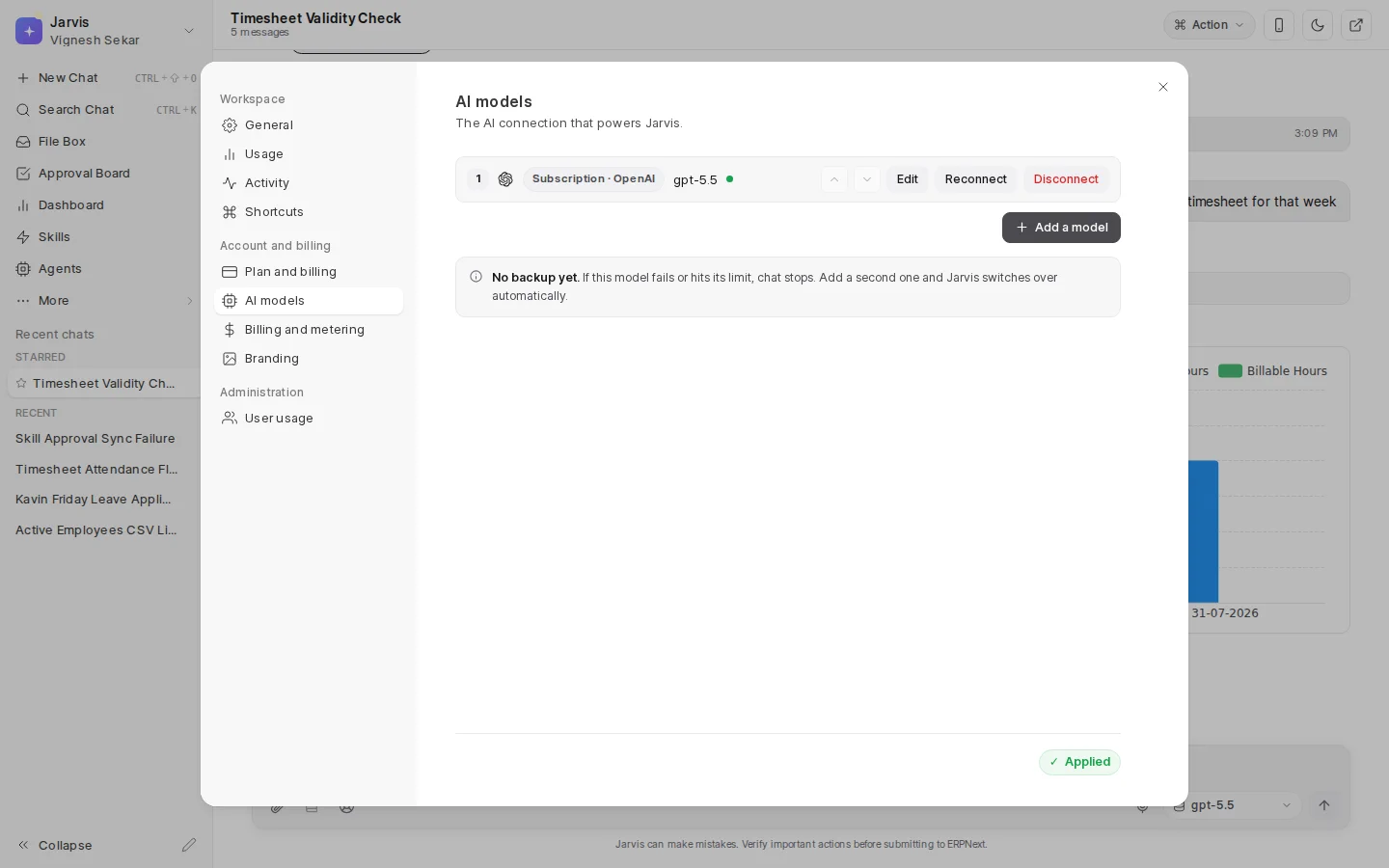
An administrator opens Settings > AI models. Other users can use the approved connection but should not see or change its credentials.
Connection choices
Depending on the workspace and plan, an administrator can connect:
- A supported chat subscription.
- An approved provider using an API key.
- Several models in a fallback order.
The editor shows each connection and its status. Auto in Chat lets Jarvis use the workspace choice. A user may select another available model for one conversation when that control is offered.
Use Reconnect when an existing subscription needs a fresh sign-in. Replace an API key when the provider rotated it. Use Disconnect or Remove when the company no longer approves a service, then check that another usable connection remains before applying the new order.
Set a fallback order
Put the preferred model first and a suitable alternative after it. A longer list is not automatically safer. Every added service brings its own cost, data terms, limits, and behaviour.
Apply the order after checking it, then test with an ordinary chat. Check Settings > General for the connection status when Chat says no model is connected.
Keep credentials safe
Enter keys only in the AI models setting. Do not paste them into Chat, Business Notes, Wiki, or Support. Remove a connection when the company no longer approves it.
A real example
A finance team uses its preferred model for daily work and keeps an approved second model behind it. When the first service is temporarily unavailable, Jarvis can use the second connection instead of leaving the team without Chat.
A fallback protects availability, not identical answers. Review important work after a model change because wording and judgment can differ.