Mobile app
Pair your phone with the right Jarvis workspace and continue work away from your desk.
In one sentence
The mobile app lets you continue Jarvis work on your phone after you connect it to the correct workspace.
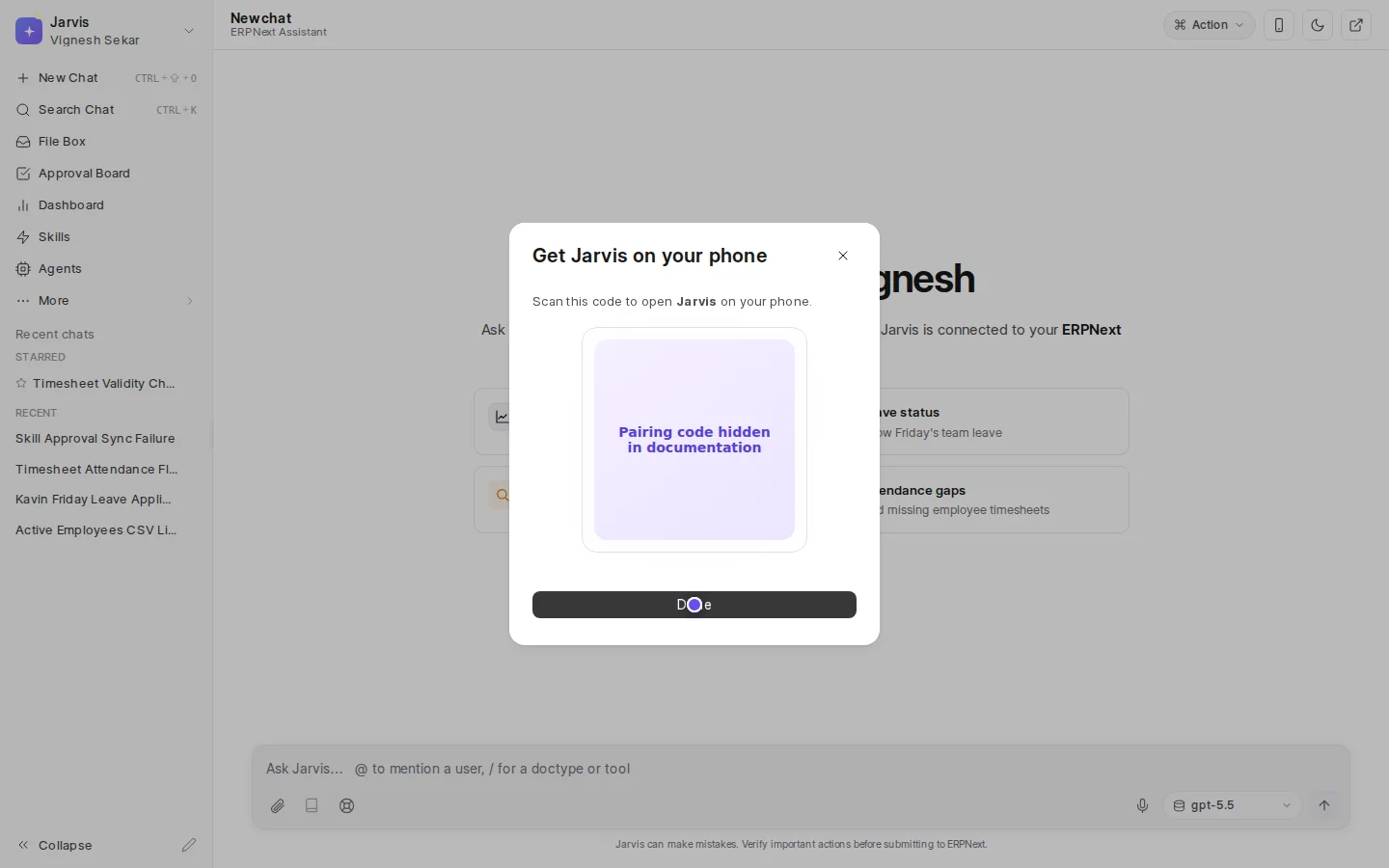
Pair the phone
- In Jarvis on your computer, open the phone-pairing option.
- Open the Jarvis mobile app and scan the QR code shown on the computer.
- Confirm that the workspace address is the one you expect.
- Sign in on the phone with your own email and password.
The QR code tells the app which workspace to use. It does not contain your password or sign you in as another person.
Use it safely
Do not photograph or forward a pairing code. If a code was shared or scanned on the wrong phone, close it and create a new one. Use the same care with confirmation cards on a phone that you use on a computer.
Voice can make it easier to capture a question or Business Note while away from a desk. Always check names, amounts, dates, and invoice numbers in the text before sending.
If pairing does not work
- Make sure the phone can reach the workspace address.
- Create a fresh QR code if the first one expired.
- Check that you signed in with the correct workspace user.
- Ask an administrator whether mobile access is available for this workspace.
Pairing a phone does not widen your access. Jarvis continues to use the permissions of the person who signs in.
Where to go next
See Voice and files or Troubleshooting.