Macros
Save several chat steps as one routine you can run again or put on a schedule.
In one sentence
A Macro is a named routine made from the prompts that already get a job done.
Use it when
Use a Macro when the work has the same steps each day, week, or month, but still benefits from Jarvis reading the latest records. Examples include Monday receivables review, daily order exceptions, and month-end checks.
Create one from good work
The easiest path is to finish the task in Chat, then choose Save as macro. Review the prompts Jarvis collected and remove any part that belonged only to that day.
You can also choose New Macro and build the steps yourself.
Build the routine
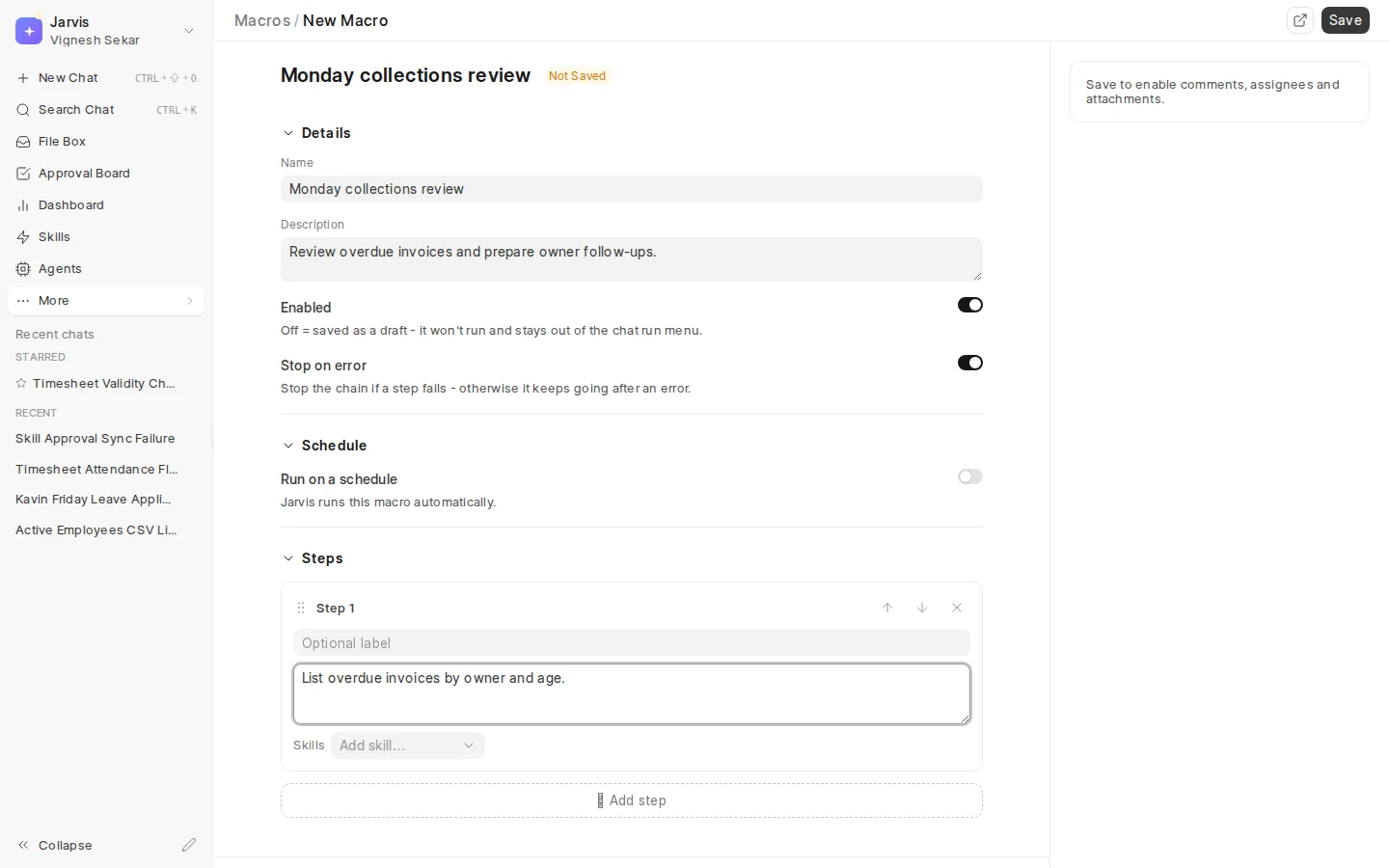
- Give the Macro an outcome-based name, such as “Monday collections review.”
- Add one clear prompt per step.
- Attach a Skill to a step when a company rule must be followed.
- Drag steps into the right order.
- Choose whether the run should stop when a step fails.
- Turn on a daily, weekly, or monthly schedule when you are ready.
When a Macro has several steps, Jarvis prepares a shorter combined instruction in the background. Wait until the summary is ready before running it.
Run and check it
Choose Run from the Macro list. A live conversation shows the current step. The Runs tab keeps the result, trigger, status, and timing for earlier runs.
Use search and filters in the Macro and Runs lists when the workspace has many routines. Run totals and status counts help you find a failing or unusually active routine, but the run detail is the evidence for what happened.
A schedule starts the routine. It does not remove the safety rules for changes prepared during the run.
A real example
At month end, the finance lead runs the same seven checks. A Macro lists the steps, uses the close Skill for company rules, stops if an earlier check fails, and keeps one run history for each month.
Disable a Macro when it should stop without losing its definition. Deleting a Macro also removes its run history. Keep any evidence your business must retain somewhere appropriate before deleting it.