Notifications
Let Jarvis call you back when work finishes or needs attention, without creating constant noise.
In one sentence
Notifications tell you about completed replies, approvals, Trigger activity, and other work that needs attention away from the screen you are viewing.
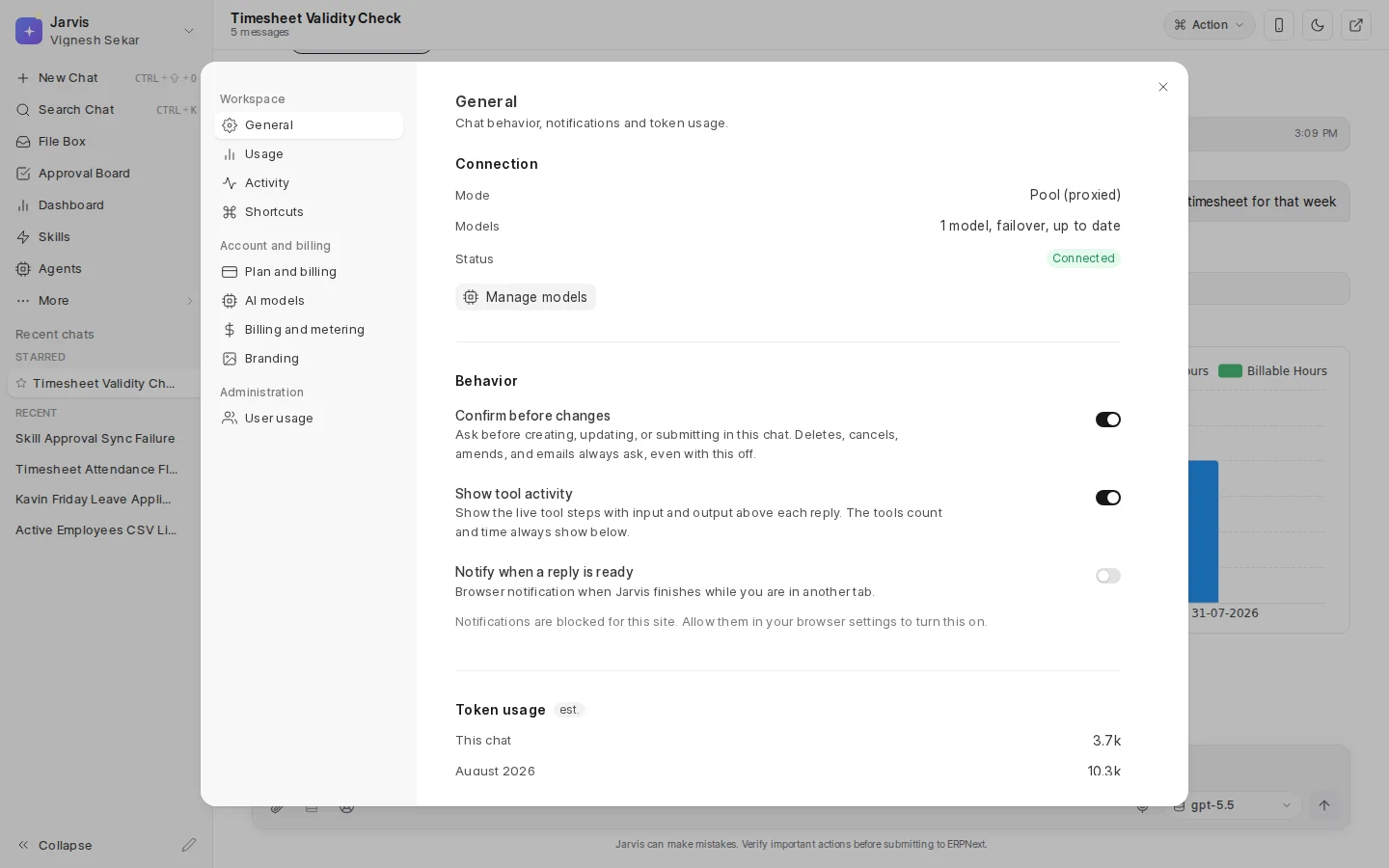
Choose reply notifications
Open Settings > General and turn on Notify when a reply is ready. Your browser may ask for permission. If notifications are blocked for the site, allow them in the browser before trying the switch again.
The setting is useful for a long answer when you move to another tab. It should not interrupt you for every reply while you are already reading the same conversation.
Other attention signals
Jarvis also uses:
- Unread marks on conversations.
- A count on the Approval Board.
- In-app messages when a reply or action finishes elsewhere.
- Activity rows for Triggers, Macros, Agents, and learning.
These signals lead back to saved work. A missed browser message does not remove the underlying approval, finding, or run.
Keep the signal useful
Turn on browser notifications on the device where you actually want them. Use narrow Trigger conditions and sensible schedules. If every event is urgent, nothing is urgent.
Use the unread count as a return path, not as a task list. The owning board or run tells you what still needs action.
Where to go next
See Search and shortcuts for returning to the right work quickly.