Triggers
Start a check or action when an important business record changes.
In one sentence
A Trigger watches for a chosen record event and starts the instruction you saved for it.
Use it when
Use a Trigger when timing depends on a record change, not a clock. Examples include a large Sales Invoice being submitted, an order becoming overdue, or a supplier record being updated.
Use a scheduled Macro or Agent when the work should happen at a set time.
The easiest way to create one
Open Triggers and use Create with chat. Describe the event in business words:
When a Sales Invoice above ₹1 lakh is submitted, summarise the customer, margin, payment terms, and any overdue balance. Warn me in chat if the customer is already late on another invoice.
Voice works in this creation chat when voice is enabled. Creating or changing Triggers requires the Jarvis Admin role.
Review the saved Trigger
Check four things:
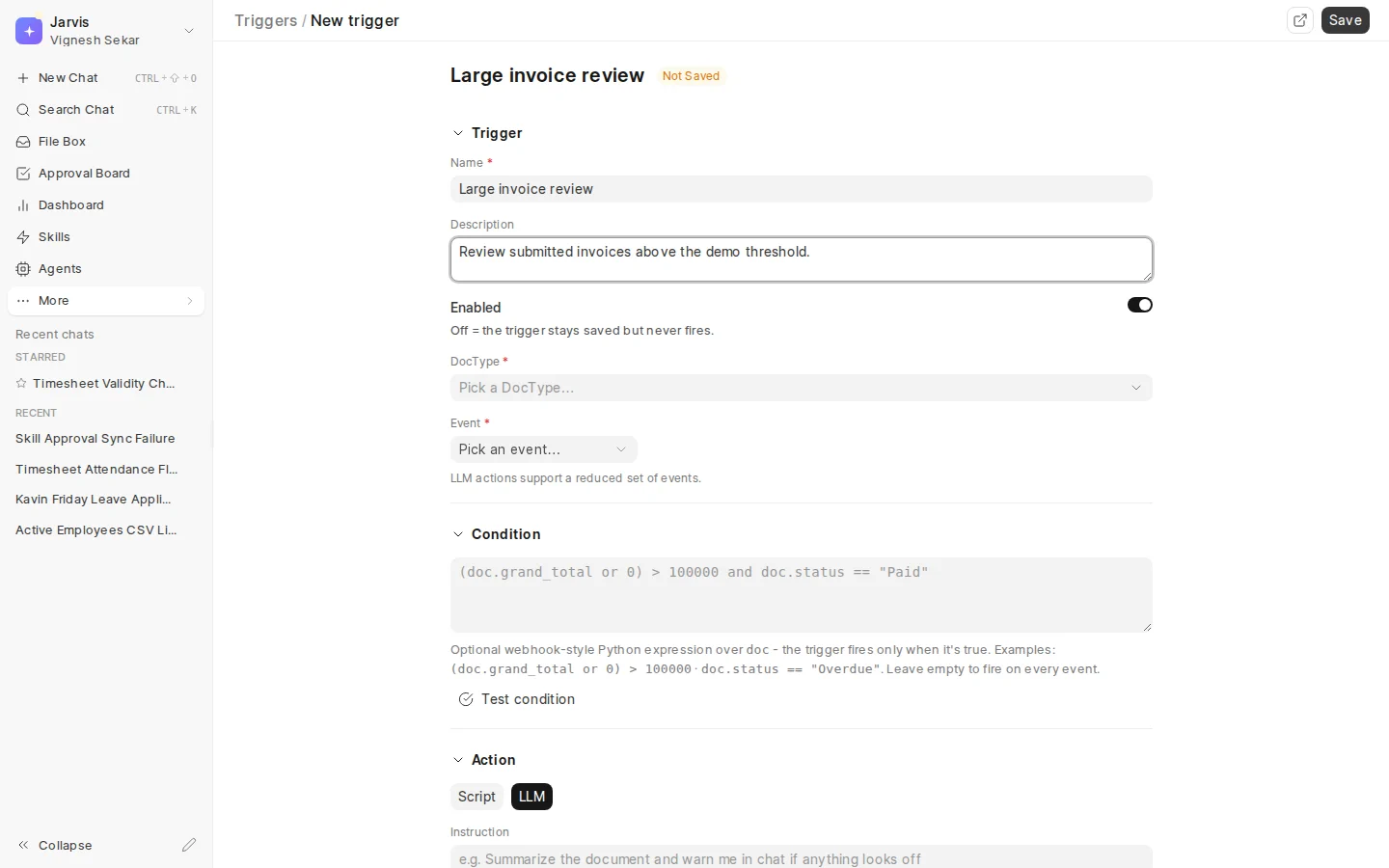
- Name and status: use a name that says what is watched, and turn it on only after testing.
- Record and event: choose the kind of business record and the change that should start the work.
- Condition: narrow the event, such as an amount above ₹1 lakh. Test it with a real record before saving.
- Instruction: say what Jarvis should do and set a daily limit for AI checks.
Some installations also allow an administrator to write a fixed server action. This is an advanced option and may be disabled. Most business users should use the plain-language instruction.
Read Activity
The Activity tab shows when the Trigger ran, which record caused it, and whether it succeeded, failed, was blocked, or was skipped. Open a row to see the detail.
Start with a narrow condition and a low daily limit. A Trigger that fires on every ordinary update creates noise and unnecessary use.